
Documented by: Brian Klier
Code mostly by Google Gemini 3 Pro
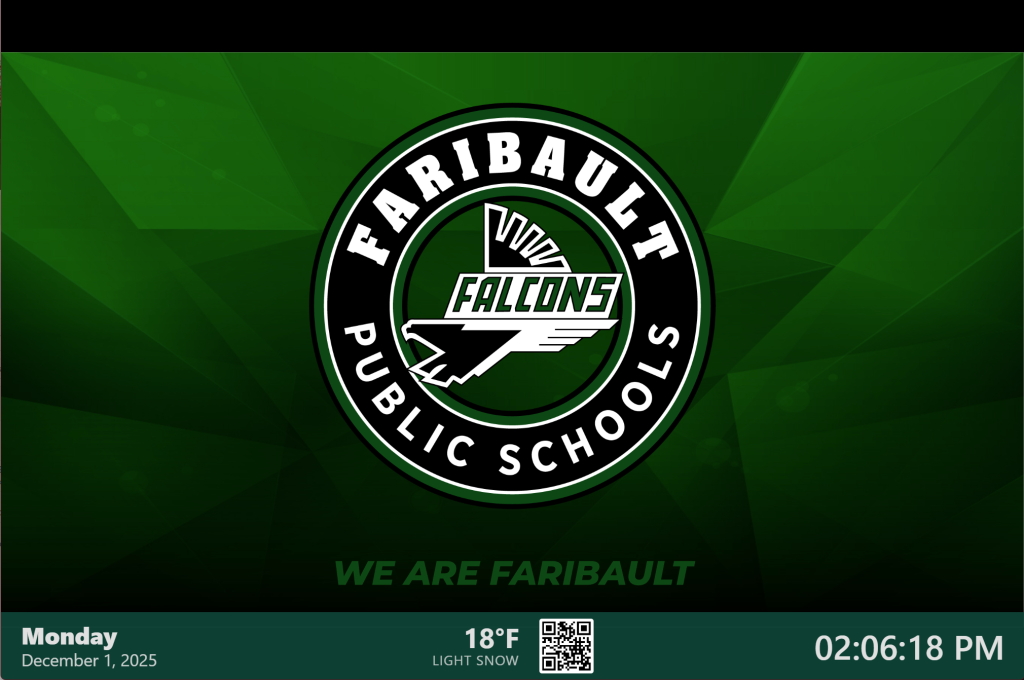
Table of Contents
Introduction
A lot of schools and businesses use the free Chrome Sign Builder created by Google, which, because it is a Chrome App, is slated to be deprecated by the middle of 2026 (except for long-term support). I used Google Gemini 3 Pro to vibe code an alternative in about an hour, which is suitable for organizations that use Google Slides as the “meat and potatoes” of their slide presentation, and used Chrome Sign Builder as a wrapper. Feel free to use this yourself and customize it as you see fit, and share it to anyone else that might find this useful.
The code creates a digital signage display that layers a clock, weather information, and a QR code over a Google Slides presentation. It also includes a background music player.
The Code
Save the following plain text code into a file called index.html. Then, follow along with the rest of the directions after the codeblock.
<!DOCTYPE html>
<html lang="en">
<head>
    <meta charset="UTF-8">
    <meta name="viewport" content="width=device-width, initial-scale=1.0">
    <title>Kiosk Presentation Display</title>
    <style>
        /* Reset and Base Styles */
        * {
            box-sizing: border-box;
            margin: 0;
            padding: 0;
        }

        body, html {
            width: 100%;
            height: 100%;
            overflow: hidden;
            font-family: "Segoe UI", Roboto, Helvetica, Arial, sans-serif;
            background-color: #000;
        }

        /* 1. The Presentation Layer */
        .presentation-frame {
            position: absolute;
            top: 0;
            left: 0;
            width: 100%;
            height: 100%;
            border: none;
            z-index: 1;
        }

        /* 2. The Overlay Bar */
        .info-bar {
            position: absolute;
            bottom: 0;
            left: 0;
            width: 100%;
            height: 10%;
            z-index: 10;

            background-color: rgba(3, 70, 56, 0.9);
            color: #e0e0e0;

            display: flex;
            justify-content: space-between;
            align-items: center;
            padding: 0 2rem;

            box-shadow: 0 -4px 10px rgba(0,0,0,0.3);
        }

        /* --- DATE SETTINGS --- */
        .date-display {
            flex: 1;
            text-align: left;
            font-family: "Segoe UI", sans-serif;
            /* Flex column to stack Day and Date */
            display: flex;
            flex-direction: column;
            justify-content: center;
        }

        .day-line {
            font-size: 3.5vh; /* Larger for the Day Name */
            font-weight: 800; /* Bold */
            line-height: 1.1;
        }

        .date-line {
            font-size: 2.5vh; /* Smaller for the specific date */
            font-weight: 400;
            opacity: 0.9;
        }

        /* --- CENTER WIDGET (Weather + QR) --- */
        .center-widget {
            flex: 2; /* Give more space to the center if needed */
            display: flex;
            justify-content: center;
            align-items: center;
            gap: 2rem; /* Space between weather and QR */
            height: 100%;
        }

        .weather-info {
            text-align: right;
            font-family: "Segoe UI", sans-serif;
        }

        .weather-temp {
            font-size: 4vh;
            font-weight: bold;
            line-height: 1;
        }

        .weather-condition {
            font-size: 2vh;
            text-transform: uppercase;
            letter-spacing: 0.05em;
            opacity: 0.8;
            max-width: 250px; /* Prevent long descriptions from breaking layout */
            white-space: nowrap;
            overflow: hidden;
            text-overflow: ellipsis;
        }

        .qr-container {
            height: 80%; /* Fit within the bar */
            aspect-ratio: 1/1;
            background-color: white; /* QR codes need white background */
            padding: 4px;
            border-radius: 4px;
            display: flex;
            justify-content: center;
            align-items: center;
            /* Make it look clickable */
            cursor: pointer;
            transition: transform 0.1s ease;
        }

        .qr-container:active {
            transform: scale(0.95);
        }

        .qr-container img {
            height: 100%;
            width: 100%;
            object-fit: contain;
        }

        /* --- TIME SETTINGS --- */
        .time-display {
            flex: 1;
            text-align: right;
            font-family: "Segoe UI", sans-serif;
            font-size: 5vh;
            font-weight: 500;
            font-variant-numeric: tabular-nums;
            line-height: 1;
            color: #e0e0e0;
        }

    </style>
</head>
<body>

    <!-- 1. The Google Slides Embed -->
    <!-- src is empty by default, populated by JS -->
    <iframe
        id="slide-frame"
        class="presentation-frame"
        src=""
        frameborder="0"
        allowfullscreen="true"
        mozallowfullscreen="true"
        webkitallowfullscreen="true">
    </iframe>

    <!-- 2. The Bottom Overlay Bar -->
    <div class="info-bar">
        <!-- LEFT: Date Stack -->
        <div class="date-display">
            <div id="day-line" class="day-line">Loading...</div>
            <div id="date-line" class="date-line">...</div>
        </div>

        <!-- CENTER: Weather + QR Widget -->
        <div class="center-widget">
            <div class="weather-info">
                <div class="weather-temp" id="weather-temp">--°F</div>
                <div class="weather-condition" id="weather-desc">Checking Weather...</div>
            </div>
            <div class="qr-container" title="Click to Toggle Music">
                <!-- Placeholder QR Code pointing to Google -->
                <img src="https://api.qrserver.com/v1/create-qr-code/?size=150x150&data=https://yourwebserver.org" alt="Scan Me">
            </div>
        </div>

        <!-- RIGHT: Time -->
        <div class="time-display" id="time-container">
            --:--:--
        </div>
    </div>

    <!-- Script to handle live Date/Time updates -->
    <script>
        // --- Configuration & URL Parsing ---
        function getQueryParam(param, defaultValue) {
            const urlParams = new URLSearchParams(window.location.search);
            return urlParams.get(param) || defaultValue;
        }

        // 1. Get Settings from URL or use Defaults
        const slideId = getQueryParam('slides', '1_xxxxxxxxxxxxxxxxxxxxxxxxxxxxxxxxxxxxxxxxxx');
        const slideDelay = getQueryParam('timeslides', '8000');
        const refreshInterval = parseInt(getQueryParam('refresh', '300000'), 10); // Default 5 mins
        const enableMusic = getQueryParam('music', 'true') === 'true';

        // 2. Initialize Slide Iframe
        const frameSrc = `https://docs.google.com/presentation/d/${slideId}/embed?start=true&loop=true&rm=minimal&delayms=${slideDelay}`;
        const iframeEl = document.getElementById('slide-frame');
        iframeEl.src = frameSrc;

        // --- Clock Logic ---
        function updateClock() {
            const now = new Date();
            const dayName = new Intl.DateTimeFormat('en-US', { weekday: 'long' }).format(now);
            const dateRest = new Intl.DateTimeFormat('en-US', {
                year: 'numeric',
                month: 'long',
                day: 'numeric'
            }).format(now);
            const timeString = now.toLocaleTimeString('en-US', {
                hour: '2-digit',
                minute: '2-digit',
                second: '2-digit'
            });

            document.getElementById('day-line').textContent = dayName;
            document.getElementById('date-line').textContent = dateRest;
            document.getElementById('time-container').textContent = timeString;
        }

        // --- Weather Function using NWS API ---
        async function updateWeather() {
            try {
                const response = await fetch(`https://api.weather.gov/stations/KFBL/observations/latest`, {
                    headers: {
                        'User-Agent': 'KioskDisplay/1.0 (techsupport@yourwebserver.org)',
                        'Accept': 'application/geo+json'
                }
            });
                if (!response.ok) throw new Error(`HTTP error! status: ${response.status}`);
                const data = await response.json();
                const props = data.properties;

                let tempText = "--°F";
                if (props.temperature && props.temperature.value !== null) {
                    const tempC = props.temperature.value;
                    const tempF = Math.round((tempC * 9/5) + 32);
                    tempText = `${tempF}°F`;
                }

                let descText = props.textDescription || "Local Weather";

                document.getElementById('weather-temp').textContent = tempText;
                document.getElementById('weather-desc').textContent = descText;

            } catch (error) {
                console.error("Weather fetch failed:", error);
            }
        }

        // --- Audio Player Logic ---
        function initAudioPlayer() {
            const totalTracks = 137;
            let playlist = Array.from({length: totalTracks}, (_, i) => i + 1);
            let currentTrackIndex = 0;
            const audio = new Audio();

            // Fisher-Yates Shuffle
            function shuffle(array) {
                for (let i = array.length - 1; i > 0; i--) {
                    const j = Math.floor(Math.random() * (i + 1));
                    [array[i], array[j]] = [array[j], array[i]];
                }
            }

            // Play specific track
            function playTrack() {
                if (currentTrackIndex >= playlist.length) {
                    // Reshuffle and restart if we played everything
                    shuffle(playlist);
                    currentTrackIndex = 0;
                }

                const trackNumber = playlist[currentTrackIndex];
                const trackPath = `music/${trackNumber}.mp3`;

                audio.src = trackPath;

                const playPromise = audio.play();
                if (playPromise !== undefined) {
                    playPromise.catch(e => {
                        console.warn("Autoplay was prevented. Click the QR code to start music.", e);
                    });
                }

                // Increment for next time
                currentTrackIndex++;
            }

            // Event listener for when song ends
            audio.addEventListener('ended', () => {
                // Wait 1 second before playing next
                setTimeout(() => {
                    playTrack();
                }, 1000);
            });

            // --- CLICK TRIGGER (Hotspot) ---
            const qrTrigger = document.querySelector('.qr-container');
            qrTrigger.addEventListener('click', () => {
                if (audio.paused) {
                    // If audio was blocked or paused, resume/play
                    // If src is set (which it is from init), just play
                    audio.play();
                } else {
                    // If playing, pause it
                    audio.pause();
                }
            });

            // Start Initial Play
            shuffle(playlist);
            playTrack();
        }

        // --- Initialization ---

        // Start Clock & Weather
        updateClock();
        updateWeather();
        setInterval(updateClock, 1000);
        setInterval(updateWeather, 900000); // 15 mins

        // Start Audio if enabled
        if (enableMusic) {
            // Using window.onload to ensure best chance for autoplay permissions
            window.addEventListener('load', initAudioPlayer);
        }

        // --- Refresh Logic ---

        // 1. Iframe Refresh (Soft Refresh) - Uses the 'refresh' URL param (default 5 mins)
        // This keeps the music playing while updating the slides
        setInterval(() => {
            console.log("Refreshing Iframe...");
            iframeEl.src = iframeEl.src;
        }, refreshInterval);

        // 2. Window Hard Refresh (Hard Refresh) - Fixed at 24 hours
        // This ensures the browser memory is cleared and app is stable long-term
        const twentyFourHours = 24 * 60 * 60 * 1000;
        setTimeout(() => {
            console.log("Performing Daily Hard Refresh...");
            window.location.reload(true);
        }, twentyFourHours);

    </script>
</body>
</html>
Installation and Configuration Instructions
1. Server Deployment & File Structure
To deploy this, you need a basic web server (Apache, Nginx, IIS, or even a static host that supports folder structures).
Directory Structure
Your web server folder should look like this:
Plaintext
/var/www/html/kiosk (or your public_html folder)
├── index.html <– The file provided
└── music/ <– A folder named exactly “music”
├── 1.mp3
├── 2.mp3
├── 3.mp3
└── … (up to your total track count)
Populating the Music Folder
- Create a folder named music in the same directory as index.html.
- Add your MP3 files to this folder.
- Important: You must rename your files sequentially: 1.mp3, 2.mp3, 3.mp3, etc. The code relies on these specific numbers to find the files.
2. Code Customization Guide
You will need to edit the index.html file using a text editor (like Notepad++, VS Code, or Sublime Text) to configure the settings below.
A. Adjusting Music Settings (Total Tracks)
You must tell the code how many songs are in your folder so it knows when to reshuffle.
- Find the function initAudioPlayer() near the bottom of the script (around line 203).
- Change the number 137 to match your actual file count.
JavaScript
// Change 137 to your number of MP3 files
const totalTracks = 137;
B. Manual Music Control (Start/Stop)
Web browsers often block audio from playing automatically until a user interacts with the page.
- To Toggle Music: Click the QR Code box in the bottom center of the screen.
- If music is off, clicking starts it. If music is on, clicking pauses it.
C. Customizing the Overlay Bar Appearance
To change the background color of the bottom information bar:
- Scroll up to the CSS section <style> and find .info-bar (around line 39).
- Change the background-color line.
CSS
.info-bar {
/* … other styles … */
/* Change the RGBA values below.
The last number (0.9) is opacity (0.0 to 1.0) */
background-color: rgba(3, 70, 56, 0.9);
/* … other styles … */
}
D. Customizing the QR Code Destination
The QR code is generated dynamically. To change where it scans to:
- Find the <img> tag inside the <div class=”qr-container”> (around line 147).
- Look for data=https://yourwebserver.org.
- Replace that URL with your desired destination.
HTML
<img src=”https://api.qrserver.com/v1/create-qr-code/?size=150×150&data=https://www.google.com” alt=”Scan Me”>
E. Customizing Weather (NWS API)
This system uses the National Weather Service (USA) API.
- Find your Station: Go to weather.gov and search for your local area. On the result page, look for the 4-letter station ID (e.g., KMSP, KNYC).
- Edit the Code: Find the updateWeather() function (around line 185).
- Station ID: Replace KFBL with your station ID.
- User Agent: Replace techsupport@yourwebserver.org with your actual email. (This is a requirement by NWS so they can contact you if your kiosk sends too many requests).
JavaScript
const response = await fetch(`https://api.weather.gov/stations/YOUR_STATION_ID/observations/latest`, {
headers: {
‘User-Agent’: ‘KioskDisplay/1.0 (your-email@example.com)’,
// …
3. Google Slides Setup
The kiosk displays a Google Slide deck in the background.
How to create and prepare the slide:
- Create a presentation at slides.google.com.
- Click the Share button (top right).
- Change access to “Anyone with the link”.
- Copy the URL. It will look like this:
https://docs.google.com/presentation/d/1_abc123-THIS_IS_THE_ID-xyz789/edit#slide=id.p - Extract the ID: Copy the long string of random characters between /d/ and /edit.
4. URL Configuration (Control Panel)
You can change the behavior of the kiosk without editing the code by adding “variables” to the end of the web address.
Base URL: http://yourserver.com/index.html
Available Variables:
| Variable | Default | Description |
| slides | (Placeholder) | The Google Slide ID you copied in step 3. |
| timeslides | 8000 | How long each slide stays on screen (in milliseconds). 8000 = 8 seconds. |
| refresh | 300000 | How often the slides reload to check for updates (in ms). 300000 = 5 minutes. |
| music | true | Set to false to disable the music player entirely. |
Example Usage:
To load a specific slide deck, change slides every 15 seconds, and refresh the content every 10 minutes:
http://yourserver.com/index.html?slides=1A2b3C4d5E6f×lides=15000&refresh=600000
5. Refresh Logic
The system has two different refresh cycles to ensure stability and content updates:
- Soft Refresh (Default: Every 5 minutes)
- What it does: It reloads only the iframe containing the Google Slides.
- Why: If you edit the Google Slide remotely, the kiosk will pick up the changes within 5 minutes without stopping the music or flashing the screen black.
- Adjust: Change the refresh URL variable (milliseconds).
- Hard Refresh (Fixed: Every 24 hours)
- What it does: It completely reloads the browser window (window.location.reload).
- Why: Browsers running 24/7 can run out of memory or get “glitchy.” This wipes the slate clean once a day.
- Note: This will briefly stop the music and reset the song shuffle.
Adjust: This is hardcoded in the script near line 265 (const twentyFourHours).
Updating Google Admin Policies
Here are the additional directions for deploying your hosted code as a Kiosk App in the Google Admin Console and configuring the necessary policies to ensure your music and loops play automatically.
Prerequisites
- Hosted URL: You must have your index.html and music folder hosted on a web server (as described in the previous guide).
- URL: Have the full URL ready (e.g., https://www.yourdomain.com/kiosk/index.html).
Part 1: Add the Web App as a Kiosk
- Log in to the Google Admin Console.
- Navigate to: Devices > Chrome > Apps & extensions > Kiosks.
- On the left sidebar, select the Organizational Unit (OU) where your kiosk devices are located.
- Hover over the yellow + (Plus) button in the bottom right corner.
- Select the Globe Icon (Add by URL).
- Enter your URL: Paste the full address of your hosted index.html.
- Select Display Option: Choose “Allow access to following URLs” (this is usually sufficient) or “Ask user” if prompted, but for Kiosks, the next step overrides this.
- Click Save.
Part 2: Configure Auto-Launch
- Stay in the Kiosks tab (Devices > Chrome > Apps & extensions > Kiosks).
- Look at the top of the app list for the “Auto-launch app” setting.
- Click the dropdown menu and select the URL app you just added.
- Save your changes.
- Note: This ensures that when the Chrome device turns on, it bypasses the login screen and immediately loads your custom HTML page.
Part 3: Configure Autoplay Policy (The “*” Wildcard)
By default, Chrome blocks audio/video from playing automatically until a user interacts with the page (clicks/taps). Since this is a hands-free kiosk, you must whitelist your URL to allow the music to start immediately.
- Navigate to: Devices > Chrome > Settings > Users & browsers.
- Select the same Kiosk OU on the left sidebar.
- Use the “Search or add a filter” bar at the top and type: Autoplay.
- Scroll down to the Content section to find “Video autoplay” (or sometimes labeled “Autoplay allowlist”).
- Step A: Ensure the main setting is set to “Allow” or “User decided” (Policy default is usually Block).
- Step B (The Wildcard): Look for the “Autoplay allowlist” text box or “Allowed URLs” list below the setting.
- Enter the wildcard: *
- Note: If the Admin Console rejects a simple asterisk, use the pattern *://* which covers all websites.
- Click Save.
Part 4: “Sound” Policy (Safety Measure)
Sometimes the “Autoplay” policy allows the video to start but mutes the audio. To ensure sound is fully enabled:
- Stay in Users & browsers settings.
- Search for: Sound.
- Find the “Sound” setting (under Content).
- Change the default to “Allow sites to play sound”.
- (Optional) If you want to be specific, add your URL (or *) to the “Allow sites to play sound” list.
- Click Save.
Summary of Changes
- App: Your URL is now the designated Kiosk app.
- Auto-Launch: The device will boot directly into your website.
- Policy: The * wildcard in the Autoplay Allowlist tells Chrome “It is safe to play video and audio automatically on ANY website loaded in this kiosk session.”