Back in January, I was asked some questions by Amber Hallet from the Faribault High School Journalism class in regards to technology. Here’s the insight I had.
What are some things that have changed over time with technology?
Technology rapidly changed from the 1960s forward. The Apollo Space Program in the 60s showed the average citizen just what was possible with electronics and a lot of brainstorming (and money!).
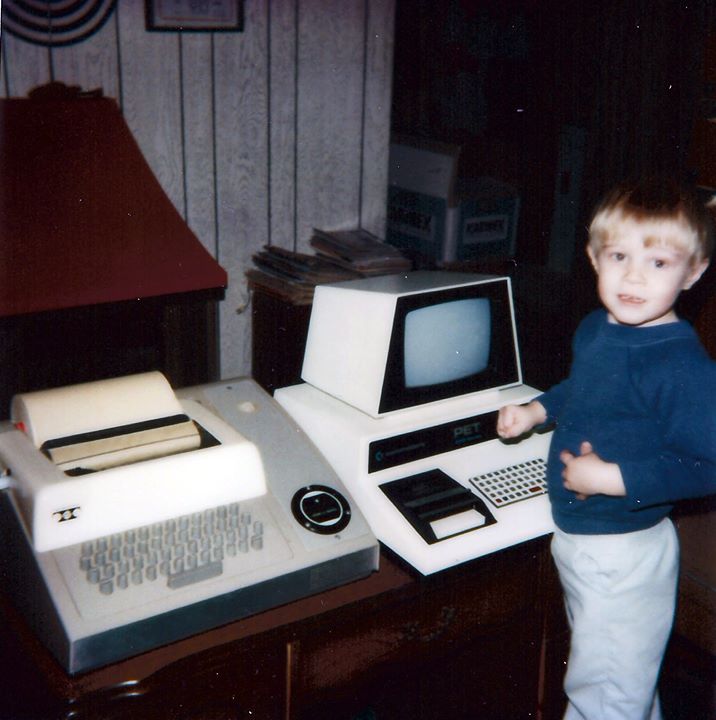
THIS IS PROBABLY IN 1981. MY COMMODORE PET COMPUTER AND A TELETYPE MACHINE
We use many of the same kinds of equipment as we did years ago. That is, equipment to record and playback sound, and equipment to organize files and folders. Improving technology has allowed this media to go digital, be better fidelity, and be a lot smaller in physical size. Instead of record players and cassette tapes, we now have compact discs and MP3 data files. File cabinets are getting replaced by file folders on hard drives.
In the last 10 years especially, technology has become “cool”, and nearly everyone uses it. Back in the 90s, you were labeled a “geek” for tinkering with portable electronic devices or computers, but now you’re not with the times if you don’t use them.
With improving technology comes an ever-increasing need for everyone to have a more thorough understanding of everything. The learning curve keeps getting steeper.
What was the technology used when you were a child?
I was a lucky kid and was fortunate enough to have a father that loved tinkering with technology. When I was 4 years old (in 1982), we had both an Apple ][+ and a Commodore Pet computer. In those days, having a computer for personal use was not mainstream, and they were usually purchased by experimenters. There were no easy-to-use graphical interfaces or mice. Everything was input into a computer by keyboard, diskette, or cassette tape, and you needed to remember a different set of commands to make each individual program function the way you wanted it to. Many people created their own programs because there might not have been software to do what they wanted (or it could have been very expensive).
Did people use a lot of technology when you were growing up?
People just started to buy VCRs and Video Cameras were I was young. Our family took a video camera along on several of our family vacations in the early-to-mid 1980s.
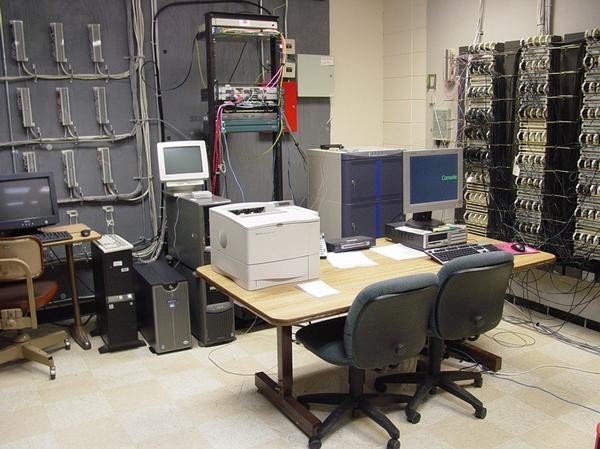
MY MDF AT THE HIGH SCHOOL
It was amazing how many people came up and talked to us, thinking we were recording a story for the evening television news. You don’t get that reaction now. In fact, many of the equipment you can get now is nearly the same fidelity as what the “big guys” are using.
This may not be a popular opinion, but I feel piracy has always advanced technology and encouraged people to accept and embrace it. For example, when people found out they could make copies of rental movies on their VCRs at home, people purchased the equipment to do so. When people discovered they could download free MP3s from the Internet through services like Napster, they embraced MP3 as a viable format and purchased the equipment to take advantage of it. In both cases, the piracy was cracked down on, but it left those formats with a huge market share, and opened up the possibilities for future (legal) development of the technologies.
How was going to the doctors different with not having equipment they have now?
Computers are everywhere. For a typical person going to a clinic, computers are used to register you at the front desk, computers are used by the nurse to record your vital statistics, and computers are used by the doctors to transcribe entries in your medical records.
What was the coolest device when you were a child?
I had this Casio Data Bank watch when I was in Junior High School in the early 1990s. It stored phone numbers, appointments, memos, and had a world clock, timer, stopwatch, and alarm. You had everything right on your wrist like Dick Tracy. It was every geek’s (well, at least my) dream.
How did people react to the new technology?
Everyone forms into one of about three groups when you show them a new piece of technology.
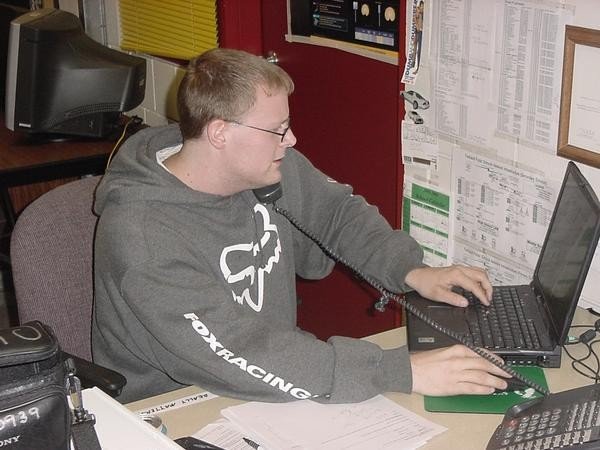
ME HARD AT WORK
You have those that are frightened to death of it, those that want to grab it and play with it right away, and those that don’t care one way or another. Getting people to accept new technology has always been one of our greatest challenges at Faribault Public Schools, as it is at most places. Usually when you can prove that something new will save somebody time or let someone do their job better, they slowly accept it (sometimes with a little extra needed encouragement). For example, we installed our first District wide e-mail system in 1997. It took a good two years before people really embraced it and found out how it could benefit them.
What kind of things didn’t you have back when you were growing up?
They certainly didn’t have many video games, at least what we would call video games today. I think most people have seen and laughed at the original television “Pong” game, where you hit a white dot back and forth across the screen with a couple lines that you would control with game paddles.
Everyone had landline telephones. In the early 80s you could even call people with just the last 5 digits of their phone number. Cellular telephones weren’t even considered an option unless you were a businessman, lawyer, or CEO, because cell phones were way too expensive for the average person. At that time, cell phones came with their own bag, a big antenna, and needed to transmit a lot of power in able to keep a phone call active. People could expect to pay a couple dollars a minute, and that wasn’t including the price of the phone.
How has our school changed with getting undated on technology?
The bottom-line goal of pretty much every school district is to prepare their students for life-long learning. In society today, you need to have at least a basic level understanding of how to use computers and logic to do basic things.
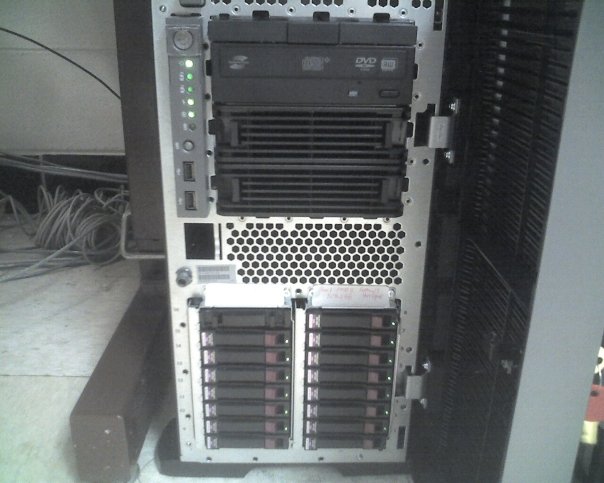
…ONE WITH 1.8TB OF SPACE, AND ONE WITH 1.5TB OF SPACE. EACH SUBSYSTEM HAS AN EXTRA HARD DRIVE (BOTTOM) THAT WILL TURN ON IF ONE DRIVE IN THE ARRAY FAILS. EACH INDIVIDUAL DRIVE SHOWN HERE IS A 300GB SAS HARD DRIVE.
Our school district tries to purchase the software that students will need some knowledge of for college and beyond, and then give them a good understanding of how to use it. Teachers continually need an advanced understanding of technology concepts in able to effectively instruct students at all grade levels. And of course, none of this is possible without newer computers, servers, switches, routers, staff to fix and support them, and the financial resources to buy that equipment and personnel.
When you first started working here what was here for technology?
I graduated from Faribault High School in 1996 and started working at Faribault Public Schools full-time in 1997. At that time, we had Internet connectivity just in the media center at the High School. None of the schools had a network connecting them together. In the offices at each school, there were 2 or 3 IBM PS/2 computers connected together with coax cable that formed a makeshift network. The schools used Macintosh computers at a time when Apple went through several engineering problems, and it was always a struggle to keep them up and running. If you wanted to transfer files from one computer to another, you had to copy them to a 3 1/2″ floppy disk first. Several labs at the High School still used the bigger 5 1/4″ diskettes. Teachers still routinely used movie and filmstrip projectors in their classrooms.
How has it changed since you have been working here?
The Faribault Community passed a levy referendum which gave our District about 4 million dollars to upgrade its technology. In 1997, we installed a wide-area network which connected all of our schools together, and we purchased Internet access which was then routed to each building. Each building got a complete video system which sent television programming to each classroom. Teachers could finally make phone calls from their own classroom telephone instead of walking down to the office. It was exciting for me to get in on the ground floor of such a large project. Since then, we have upgraded all of the network equipment District-wide once. We have expanded the bandwidth of our Internet connection 4 times. We are now on the 3rd generation of computers in the classrooms and around the 4th generation of computers in the labs since the original referendum. Almost every classroom district-wide now has a high-definition video projector hung from the ceiling instead of televisions. Smartboards and document cameras have begun replacing whiteboards and overhead projectors. Lastly, I have seen our staff in the last 15 years learn and better adapt to technology. It has not been an easy road, but I think teachers have done a wonderful job including technology in their curriculum.